• Facebook Tips
How to Install Facebook Marketplace Nearby Me App, How to Make Facebook Fan Page, How to Delete All Facebook Search History on FB , How to Login Instagram with Your Facebook , Marketplace Facebook Buy and Sell within Local Community – Marketplace Facebook Buy Sell , How to Deactivate FB Account Temporarily on Facebook, How to Find Blocked Facebook List to Unblock blocked Friends , How to Use the “Nearby Me Friends” FB Feature on Facebook , Facebook Customer Care Center & Email Help Supports Contact Addresses , How to Install Facebook Farmville Games
Showing posts with label How to untag yourself from a post. Show all posts

How to remove tag in Facebook

 How to remove tag, How to remove tag from Facebook, How to remove tag in Facebook, How to untag yourself from a post, Remove tag on Facebook     1 comment   

Notifications from friend's post can sometimes be annoying. Imagine a friend of yours updated his/her status or changed his or her profile picture and tagged you.  The tagging is not bad but getting notifications from every Tom, Dick And Harry that comments on the post is what will likely bother us. Now, we can untag ourselves from an update on a friend's post or. Its very simple. Read on to see how to do it.

ON MOBILE:

To remove a tag from a post you've been tagged in:
1. Tap ☰ at the top right hand corner of your fb page
2. Click on your name, this action takes you to your profile
3. Scroll through your timeline to search for the post you want to untag yourself from 
4. Click on in the top right of the post and select Remove Tag.
5. Tap Ok when prompted.'


See also: How to Remove Someone Who Likes Your Facebook Page

ON WEB/BROWSER
1. Log in your profile on Facebook (email address or phone number and password)
2. Click on the Facebook Drop down on the upper right hand corner of your Facebook page
3. On the drop-down menu, click on Activity log
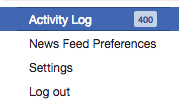
Remove Facebook tag
4. Click on Posts you're tagged in at the left-hand side of the page
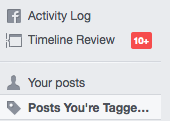
Remove Facebook tag
5. This will pop up a screen that shows all the posts you've been tagged in, scroll through and select the post you want to untag yourself from by clicking on the pencil icon by the right of the post
Remove Facebook tag

6. On the drop down menu, click on Report/Remove tag
Remove Facebook tag
7. On the screen that pops up, tell Facebook the reason you want to be untagged then click on Continue
8. Follow the prompt.


Simple! Start untagging yourself from those post you don't like now!
Read More
  • Share This:  
  •  Facebook
  •  Twitter
  •  Google+
  •  Stumble
  •  Digg

How to remove tag on Facebook

 How to untag yourself from a post, untag on Facebook     No comments   

How to remove tag on fb- Notifications from a friend's post can sometimes be annoying and irritating. Imagine this scenario: a friend of yours updated his/her status or changed his or her profile picture and tagged you.  The tagging is not bad but getting notifications from every Tom, Dick And Harry that comments on the post is what will likely bother you. Now, we can untag ourselves from an update on a friend's post or. Its very simple. Read on to see how to do it.

ON MOBILE:

To remove a tag from a post you've been tagged in:
1. Tap ☰ at the top right hand corner of your fb page
2. Click on your name, this action takes you to your profile
3. Scroll through your timeline to search for the post you want to untag yourself from 
4. Click on in the top right of the post and select Remove Tag.
5. Tap Ok when prompted.'

ON BROWSER

1. Log in your profile on Facebook (email address or phone number and password)
2. Click on the Facebook Drop down on the upper right hand corner of your Facebook page
3. On the drop-down menu, click on ''Activity log''
Remove Facebook tag
4. Click on ''Posts you're tagged in'' at the left-hand side of the page
Remove Facebook tag
5. This will pop up a screen that shows all the posts you've been tagged in, scroll through and select the post you want to untag yourself from by clicking on the pencil icon by the right of the post
Remove Facebook tag
6. On the drop down menu, click on Report/Remove tag
Remove Facebook tag
7. On the screen that pops up, tell Facebook the reason you want to be untagged then click on ''Continue''
8. Follow the prompt.
Read More
  • Share This:  
  •  Facebook
  •  Twitter
  •  Google+
  •  Stumble
  •  Digg

How to remove tag in Facebook

 How to remove tag, How to remove tag from Facebook, How to remove tag in Facebook, How to untag yourself from a post, Remove tag on Facebook     No comments   

Notifications from friend's post can sometimes be annoying. Imagine a friend of yours updated his/her status or changed his or her profile picture and tagged you.  The tagging is not bad but getting notifications from every Tom, Dick And Harry that comments on the post is what will likely bother us. Now, we can untag ourselves from an update on a friend's post or. Its very simple. Read on to see how to do it.

ON MOBILE:

To remove a tag from a post you've been tagged in:
1. Tap ☰ at the top right hand corner of your fb page
2. Click on your name, this action takes you to your profile
3. Scroll through your timeline to search for the post you want to untag yourself from 
4. Click on in the top right of the post and select Remove Tag.
5. Tap Ok when prompted.'


See also: How to Remove Someone Who Likes Your Facebook Page

ON WEB/BROWSER
1. Log in your profile on Facebook (email address or phone number and password)
2. Click on the Facebook Drop down on the upper right hand corner of your Facebook page
3. On the drop-down menu, click on Activity log
Remove Facebook tag
4. Click on Posts you're tagged in at the left-hand side of the page
Remove Facebook tag
5. This will pop up a screen that shows all the posts you've been tagged in, scroll through and select the post you want to untag yourself from by clicking on the pencil icon by the right of the post
Remove Facebook tag

6. On the drop down menu, click on Report/Remove tag
Remove Facebook tag
7. On the screen that pops up, tell Facebook the reason you want to be untagged then click on Continue
8. Follow the prompt.


Simple! Start untagging yourself from those post you don't like now!
Read More
  • Share This:  
  •  Facebook
  •  Twitter
  •  Google+
  •  Stumble
  •  Digg

How to remove tag in Facebook

 How to remove tag, How to remove tag from Facebook, How to remove tag in Facebook, How to untag yourself from a post, Remove tag on Facebook     No comments   

Notifications from friend's post can sometimes be annoying. Imagine a friend of yours updated his/her status or changed his or her profile picture and tagged you.  The tagging is not bad but getting notifications from every Tom, Dick And Harry that comments on the post is what will likely bother us. Now, we can untag ourselves from an update on a friend's post or. Its very simple. Read on to see how to do it.

ON MOBILE:

To remove a tag from a post you've been tagged in:
1. Tap ☰ at the top right hand corner of your fb page
2. Click on your name, this action takes you to your profile
3. Scroll through your timeline to search for the post you want to untag yourself from 
4. Click on in the top right of the post and select Remove Tag.
5. Tap Ok when prompted.'


See also: How to Remove Someone Who Likes Your Facebook Page

ON WEB/BROWSER
1. Log in your profile on Facebook (email address or phone number and password)
2. Click on the Facebook Drop down on the upper right hand corner of your Facebook page
3. On the drop-down menu, click on Activity log
Remove Facebook tag
4. Click on Posts you're tagged in at the left-hand side of the page
Remove Facebook tag
5. This will pop up a screen that shows all the posts you've been tagged in, scroll through and select the post you want to untag yourself from by clicking on the pencil icon by the right of the post
Remove Facebook tag

6. On the drop down menu, click on Report/Remove tag
Remove Facebook tag
7. On the screen that pops up, tell Facebook the reason you want to be untagged then click on Continue
8. Follow the prompt.


Simple! Start untagging yourself from those post you don't like now!
Read More
  • Share This:  
  •  Facebook
  •  Twitter
  •  Google+
  •  Stumble
  •  Digg

How to remove tag on fb

 How to untag yourself from a post, untag on Facebook     No comments   

How to remove tag on fb- Notifications from a friend's post can sometimes be annoying and irritating. Imagine this scenario: a friend of yours updated his/her status or changed his or her profile picture and tagged you.  The tagging is not bad but getting notifications from every Tom, Dick And Harry that comments on the post is what will likely bother you. Now, we can untag ourselves from an update on a friend's post or. Its very simple. Read on to see how to do it.

ON MOBILE:

To remove a tag from a post you've been tagged in:
1. Tap ☰ at the top right hand corner of your fb page
2. Click on your name, this action takes you to your profile
3. Scroll through your timeline to search for the post you want to untag yourself from 
4. Click on in the top right of the post and select Remove Tag.
5. Tap Ok when prompted.'

ON BROWSER

1. Log in your profile on Facebook (email address or phone number and password)
2. Click on the Facebook Drop down on the upper right hand corner of your Facebook page
3. On the drop-down menu, click on ''Activity log''
Remove Facebook tag
4. Click on ''Posts you're tagged in'' at the left-hand side of the page
Remove Facebook tag
5. This will pop up a screen that shows all the posts you've been tagged in, scroll through and select the post you want to untag yourself from by clicking on the pencil icon by the right of the post
Remove Facebook tag
6. On the drop down menu, click on Report/Remove tag
Remove Facebook tag
7. On the screen that pops up, tell Facebook the reason you want to be untagged then click on ''Continue''
8. Follow the prompt.
Read More
  • Share This:  
  •  Facebook
  •  Twitter
  •  Google+
  •  Stumble
  •  Digg

How to remove tag on fb

 How to untag yourself from a post, untag on Facebook     No comments   

How to remove tag on fb- Notifications from a friend's post can sometimes be annoying and irritating. Imagine this scenario: a friend of yours updated his/her status or changed his or her profile picture and tagged you.  The tagging is not bad but getting notifications from every Tom, Dick And Harry that comments on the post is what will likely bother you. Now, we can untag ourselves from an update on a friend's post or. Its very simple. Read on to see how to do it.

ON MOBILE:

To remove a tag from a post you've been tagged in:
1. Tap ☰ at the top right hand corner of your fb page
2. Click on your name, this action takes you to your profile
3. Scroll through your timeline to search for the post you want to untag yourself from 
4. Click on in the top right of the post and select Remove Tag.
5. Tap Ok when prompted.'

ON BROWSER

1. Log in your profile on Facebook (email address or phone number and password)
2. Click on the Facebook Drop down on the upper right hand corner of your Facebook page
3. On the drop-down menu, click on ''Activity log''
Remove Facebook tag
4. Click on ''Posts you're tagged in'' at the left-hand side of the page
Remove Facebook tag
5. This will pop up a screen that shows all the posts you've been tagged in, scroll through and select the post you want to untag yourself from by clicking on the pencil icon by the right of the post
Remove Facebook tag
6. On the drop down menu, click on Report/Remove tag
Remove Facebook tag
7. On the screen that pops up, tell Facebook the reason you want to be untagged then click on ''Continue''
8. Follow the prompt.
Read More
  • Share This:  
  •  Facebook
  •  Twitter
  •  Google+
  •  Stumble
  •  Digg

How to remove tag in Facebook

 How to remove tag, How to remove tag from Facebook, How to remove tag in Facebook, How to untag yourself from a post, Remove tag on Facebook     No comments   

Notifications from friend's post can sometimes be annoying. Imagine a friend of yours updated his/her status or changed his or her profile picture and tagged you.  The tagging is not bad but getting notifications from every Tom, Dick And Harry that comments on the post is what will likely bother us. Now, we can untag ourselves from an update on a friend's post or. Its very simple. Read on to see how to do it.

ON MOBILE:

To remove a tag from a post you've been tagged in:
1. Tap ☰ at the top right hand corner of your fb page
2. Click on your name, this action takes you to your profile
3. Scroll through your timeline to search for the post you want to untag yourself from 
4. Click on in the top right of the post and select Remove Tag.
5. Tap Ok when prompted.'


See also: How to Remove Someone Who Likes Your Facebook Page

ON WEB/BROWSER
1. Log in your profile on Facebook (email address or phone number and password)
2. Click on the Facebook Drop down on the upper right hand corner of your Facebook page
3. On the drop-down menu, click on Activity log
Remove Facebook tag
4. Click on Posts you're tagged in at the left-hand side of the page
Remove Facebook tag
5. This will pop up a screen that shows all the posts you've been tagged in, scroll through and select the post you want to untag yourself from by clicking on the pencil icon by the right of the post
Remove Facebook tag

6. On the drop down menu, click on Report/Remove tag
Remove Facebook tag
7. On the screen that pops up, tell Facebook the reason you want to be untagged then click on Continue
8. Follow the prompt.


Simple! Start untagging yourself from those post you don't like now!
Read More
  • Share This:  
  •  Facebook
  •  Twitter
  •  Google+
  •  Stumble
  •  Digg

How to remove tag on fb

 How to untag yourself from a post, untag on Facebook     No comments   

How to remove tag on fb- Notifications from a friend's post can sometimes be annoying and irritating. Imagine this scenario: a friend of yours updated his/her status or changed his or her profile picture and tagged you.  The tagging is not bad but getting notifications from every Tom, Dick And Harry that comments on the post is what will likely bother you. Now, we can untag ourselves from an update on a friend's post or. Its very simple. Read on to see how to do it.

ON MOBILE:

To remove a tag from a post you've been tagged in:
1. Tap ☰ at the top right hand corner of your fb page
2. Click on your name, this action takes you to your profile
3. Scroll through your timeline to search for the post you want to untag yourself from 
4. Click on in the top right of the post and select Remove Tag.
5. Tap Ok when prompted.'

ON BROWSER

1. Log in your profile on Facebook (email address or phone number and password)
2. Click on the Facebook Drop down on the upper right hand corner of your Facebook page
3. On the drop-down menu, click on ''Activity log''
Remove Facebook tag
4. Click on ''Posts you're tagged in'' at the left-hand side of the page
Remove Facebook tag
5. This will pop up a screen that shows all the posts you've been tagged in, scroll through and select the post you want to untag yourself from by clicking on the pencil icon by the right of the post
Remove Facebook tag
6. On the drop down menu, click on Report/Remove tag
Remove Facebook tag
7. On the screen that pops up, tell Facebook the reason you want to be untagged then click on ''Continue''
8. Follow the prompt.
Read More
  • Share This:  
  •  Facebook
  •  Twitter
  •  Google+
  •  Stumble
  •  Digg

How to remove tag in Facebook

 How to remove tag, How to remove tag from Facebook, How to remove tag in Facebook, How to untag yourself from a post, Remove tag on Facebook     No comments   

Notifications from friend's post can sometimes be annoying. Imagine a friend of yours updated his/her status or changed his or her profile picture and tagged you.  The tagging is not bad but getting notifications from every Tom, Dick And Harry that comments on the post is what will likely bother us. Now, we can untag ourselves from an update on a friend's post or. Its very simple. Read on to see how to do it.

ON MOBILE:

To remove a tag from a post you've been tagged in:
1. Tap ☰ at the top right hand corner of your fb page
2. Click on your name, this action takes you to your profile
3. Scroll through your timeline to search for the post you want to untag yourself from 
4. Click on in the top right of the post and select Remove Tag.
5. Tap Ok when prompted.'


See also: How to Remove Someone Who Likes Your Facebook Page

ON WEB/BROWSER
1. Log in your profile on Facebook (email address or phone number and password)
2. Click on the Facebook Drop down on the upper right hand corner of your Facebook page
3. On the drop-down menu, click on Activity log
Remove Facebook tag
4. Click on Posts you're tagged in at the left-hand side of the page
Remove Facebook tag
5. This will pop up a screen that shows all the posts you've been tagged in, scroll through and select the post you want to untag yourself from by clicking on the pencil icon by the right of the post
Remove Facebook tag

6. On the drop down menu, click on Report/Remove tag
Remove Facebook tag
7. On the screen that pops up, tell Facebook the reason you want to be untagged then click on Continue
8. Follow the prompt.


Simple! Start untagging yourself from those post you don't like now!
Read More
  • Share This:  
  •  Facebook
  •  Twitter
  •  Google+
  •  Stumble
  •  Digg
Older Posts Home
How to Install Facebook Marketplace Near Me App

How to Create a Facebook Business Page

How to Completely Delete Facebook Search History

How to Sign in or Login Instagram with Your Facebook

Marketplace Facebook Buy and Sell within Local Community – Marketplace Facebook Buy Sell App

How to Deactivate FB Account Temporarily on Facebook

How to Find Blocked Facebook List to Unblock blocked Friends

How to Use the “Near Me Friends” Facebook Feature

FB Customer Care Center & Email Help Supports Contact Addresses

How to Install & Play the Facebook Farmville Games
How to Install Facebook Marketplace Near Me App

How to Create a Facebook Business Page

How to Completely Delete Facebook Search History

How to Sign in or Login Instagram with Your Facebook

Marketplace Facebook Buy and Sell within Local Community – Marketplace Facebook Buy Sell App

How to Deactivate FB Account Temporarily on Facebook

How to Find Blocked Facebook List to Unblock blocked Friends

How to Use the “Near Me Friends” Facebook Feature

FB Customer Care Center & Email Help Supports Contact Addresses

How to Install & Play the Facebook Farmville Games

Enter your email address:

Other resources

  • Facebook open graph debugger
  • How to delete Facebook account permanently

Blog Archive

  • ▼  2019 (139)
    • ▼  March (129)
      • How to Create a Facebook Store
      • Pinterest Login with Facebook
      • Delete Your Facebook Account
      • Learn How To View Blocked List on Facebook and Unb...
      • Close My Facebook Account
      • Facebook Hidden Friends
      • Instagram Register Online
      • How To Permanently Deactivate My Facebook Account
      • How to See Private Facebook Profile
      • Facebook Mobile Full Site
      • Who Viewed My Facebook Profile
      • Can Facebook Cause Depression
      • How To Invite All Friends To A Facebook Event
      • How to Delete Facebook Activity Log
      • Unfriend On Facebook
      • How To Join Facebook As A Business
      • How To Change My Facebook Photo
      • How To Change Mobile Number On Facebook
      • Change Facebook Language Back To English
      • The Facebook Market – Facebook Marketplace
      • How Use the Facebook Marketplace
      • Create my own Facebook page
      • Open New Facebook Account
      • Facebook free marketplace community
      • How to Sell Car on Marketplace
      • www.Facebook News Feed Settings
      • How to Save Facebook Images
      • Facebook for iPhone free
      • Use WCW on Facebook
      • Join Marketplace Buy and Sell
      • Facebook Games List On Facebook Gameroom
      • Report Peoples Post On Facebook Reporting Center
      • Facebook Hooking up Platform
      • How to Report Facebook Account
      • Visit the Facebook Help Center
      • Facebook Developers – What Is Facebook Developer
      • Facebook Hook 2019
      • Create a Facebook birthday fundraiser
      • How to Cancel Facebook Account
      • How to Unblock Your Friend On Facebook
      • How Can I Find My Facebook Password Without Changi...
      • Facebook Log In
      • How do I Download Instagram On Mac
      • Log In Facebook.com
      • Instagram Followers Free
      • Find Deleted Messages On Facebook
      • Font Changer Online for Facebook
      • Www.facebook.com Sign Up Account
      • Facebook free marketplace
      • How Can I Print Photos From Facebook
      • Facebook Dating
      • My Facebook Account Was Disabled How Do I Reactiva...
      • Facebook Dating Step by Step Guide
      • Facebook Emoticons - All you Need to Know
      • Top Facebook Users In The World
      • How Does Selling Goods on Facebook Work
      • How can I Delete A Comment On Facebook
      • How to Poke Someone On Facebook
      • What can I Post On Instagram
      • Facebook Reporting Website
      • Facebook Reporting Website
      • How to Sell on Fb
      • Download the Amazon Apk
      • How Do I Reactivate Disabled Facebook Account
      • How Do I Reactivate Facebook Account
      • Facebook list free games
      • Things to Sell on Facebook
      • What Is HHP Mobile
      • Buy and Sell Apps
      • How To Make A Picture Collage On Facebook
      • Facebook Open Graph Debugger
      • How Can I See Deleted Messages On Facebook
      • How To Ask A Poll Question On Facebook
      • Appear Offline in Facebook
      • How to get the Facebook Messenger App
      • Facebook Free Marketplace Community
      • Facebook Chat App – Facebook Messenger App
      • Google Download Facebook Messenger
      • Facebook Messenger Application
      • How to Change Facebook Username
      • Free Facebook Video Downloader
      • How to Login Facebook Account with Password
      • How to Print Photos From Facebook
      • How to Enable Facebook App Notifications
      • How do I Create Facebook Account
      • Messenger – How to Access And Download
      • How to Login to Facebook on Mobile
      • Facebook Search Friends – Facebook Account
      • Sell on Facebook by Running Ads
      • Pinterest Sign up Process – Pinterest Account
      • Facebook Developers
      • Dating on Facebook – Facebook Dating | Dating Face...
      • Free Mode on Facebook Lite
      • Facebook Sign up for New Account
      • What to Sell on Facebook
      • How to Start Selling Goods on Facebook
      • Facebook Free Messenger Application
      • How Do I Get the Messenger App
      • Sell Items on a Facebook Page
      • Change Password for Facebook
      • 25 Top Social Media Platforms To Skyrocket Your E-...
      • How to Restore A Deleted Instagram Account
      • Facebook Messenger Instant Game List
      • Update Facebook to New Version
      • Facebook Pokes Location in Profile
      • How Do You Poke Someone On Facebook
      • How To Upload a Video to Facebook
      • What Size Does A Facebook Cover Photo Need to Be
      • Add Photo To Facebook Post
      • View Private Facebook Wall
      • How To Find Someone on Instagram
      • How To Find Facebook Account By Phone Number
      • How To Delete Facebook Account
      • Instagram Company Phone Number
      • How Do You Logout On Instagram
      • How to Join Facebook
      • I forgot my Facebook password and email password
      • Learn Facebook pokes app
      • Login To My Facebook Account
      • How To Unblock Someone On Facebook And Messenger
      • View Blocked List On Facebook
      • Facebook Hook Up – www.Facebook.com
      • Facebook Mobile Messenger – Facebook Messenger | f...
      • Facebook Stores Online
      • Facebook Watch Feature – The Facebook Watch
      • Facebook Chat App
      • Facebook Game Free To Play – Facebook Gameroom
      • Free Facebook Market Place
    • ►  January (10)
  • ►  2018 (9299)
    • ►  December (7)
    • ►  November (646)
    • ►  October (90)
    • ►  September (64)
    • ►  August (17)
    • ►  July (97)
    • ►  June (253)
    • ►  May (1200)
    • ►  April (1343)
    • ►  March (3502)
    • ►  February (1733)
    • ►  January (347)
  • ►  2017 (814)
    • ►  December (814)
  • Disclaimer
  • Contact

Copyright © Facebook Tips